
1. The widget is not updating
(The clock appears to stop)
(The date appears not to change)
Symptoms
- The clock appears to stop
- The date appears not to change
Main cause
The device’s power-saving settings may be restricting the app’s background activity.
How to fix it
Please follow the steps below to remove these restrictions.
The steps vary depending on your device manufacturer and Android version.
Xiaomi(2024 and later)
Mainly for devices released in 2024 or later with HyperOS.
- Long-press the “My Clock Widget” app icon on your home screen.
- Tap “App info” from the menu that appears.
- Turn “Autostart” ON.
- Set “Battery saver” to “No restrictions”.
- Return to the home screen and open the Settings app.
- Tap “Apps” → “Permissions” → “Background autostart”.
- Turn the switch for “My Clock Widget” ON.
- Restart your device.
Xiaomi(2023 and earlier)
Mainly for devices released in 2023 or earlier running MIUI.
- Long-press the “My Clock Widget” app icon on your home screen.
- Tap “App info” from the menu that appears.
- Turn “Autostart” ON.
- Set “Battery saver” to “No restrictions”.
- Restart your device.
OPPO(2024 and later)
Mainly for devices released in 2024 or later running ColorOS 14 or newer.
- Long-press the “My Clock Widget” app icon on your home screen.
- Tap “App info” from the menu that appears.
- Tap “Battery usage”.
- Turn “Allow background activity” ON.
A confirmation dialog may appear depending on your device model or region. If it does, select “Allow” to proceed. - Return to the home screen and open the Settings app.
- Tap “Battery” → “Power saving settings”.
This option may appear as “More battery settings”, or a similar name depending on your device model or region. - Turn “Sleep standby optimization” OFF.
- Tap “Optimize battery use”.
- Tap “My Clock Widget” and select “Don’t optimize”.
If this item appears grayed out while already set to “Don’t optimize”, you can proceed to the next step. - Restart your device.
OPPO(2023 and earlier)
Mainly for devices released in 2023 or earlier running ColorOS 13 or older.
- Long-press the “My Clock Widget” app icon on your home screen.
- Tap “App info” from the menu that appears.
- Tap “Battery usage”.
- Turn “Allow background activity” ON.
A confirmation dialog may appear depending on your device model or region. If it does, select “Allow” to proceed. - Turn “Allow auto launch” ON.
A confirmation dialog may appear depending on your device model or region. If it does, select “Allow” to proceed. - Return to the home screen and open the Settings app.
- Tap “Battery” → “More battery settings”.
- Turn “Sleep standby optimization” OFF.
- Tap “Optimize battery use”.
- Tap “My Clock Widget” and select “Don’t optimize”.
If this item appears grayed out while already set to “Don’t optimize”, you can proceed to the next step. - Restart your device.
Other devices(Android 15 or later)
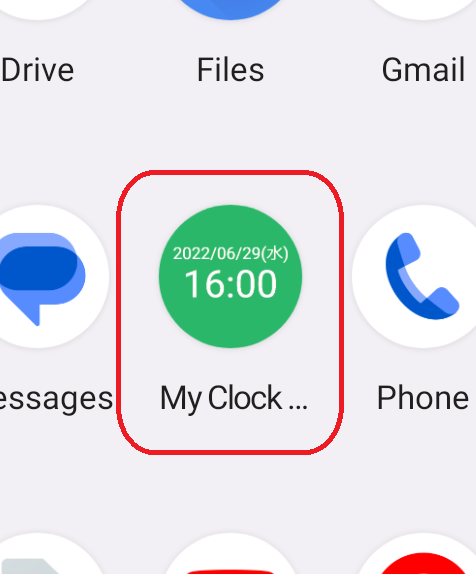
- Long-press the “My Clock Widget” app icon on your home screen.
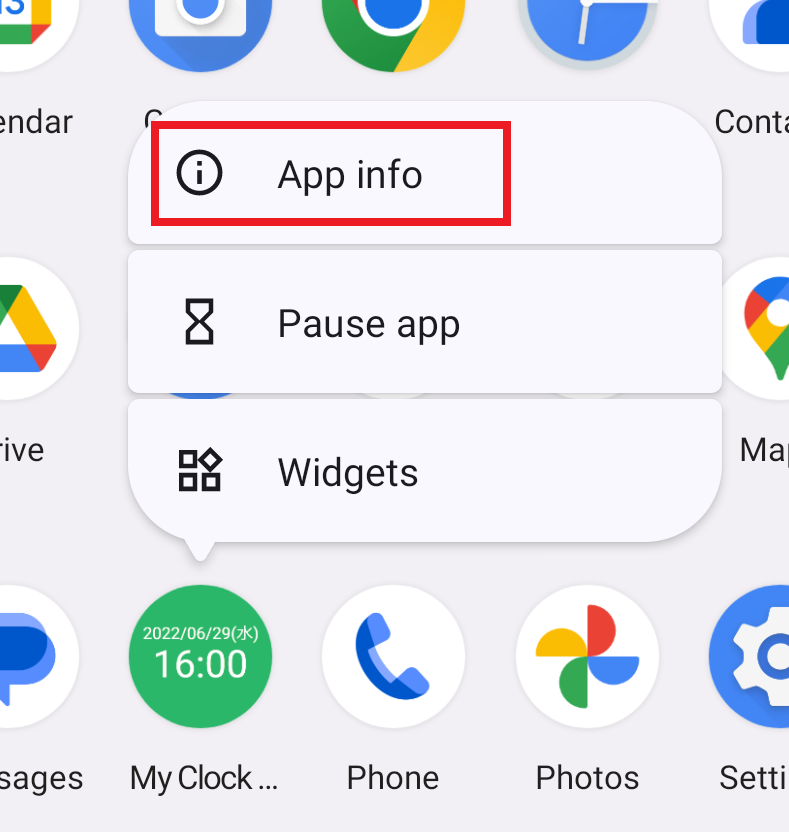
- Tap “App info” from the menu that appears.
- Tap “App battery usage”.
This option may appear as “Battery” or “Power” depending on your device model or region.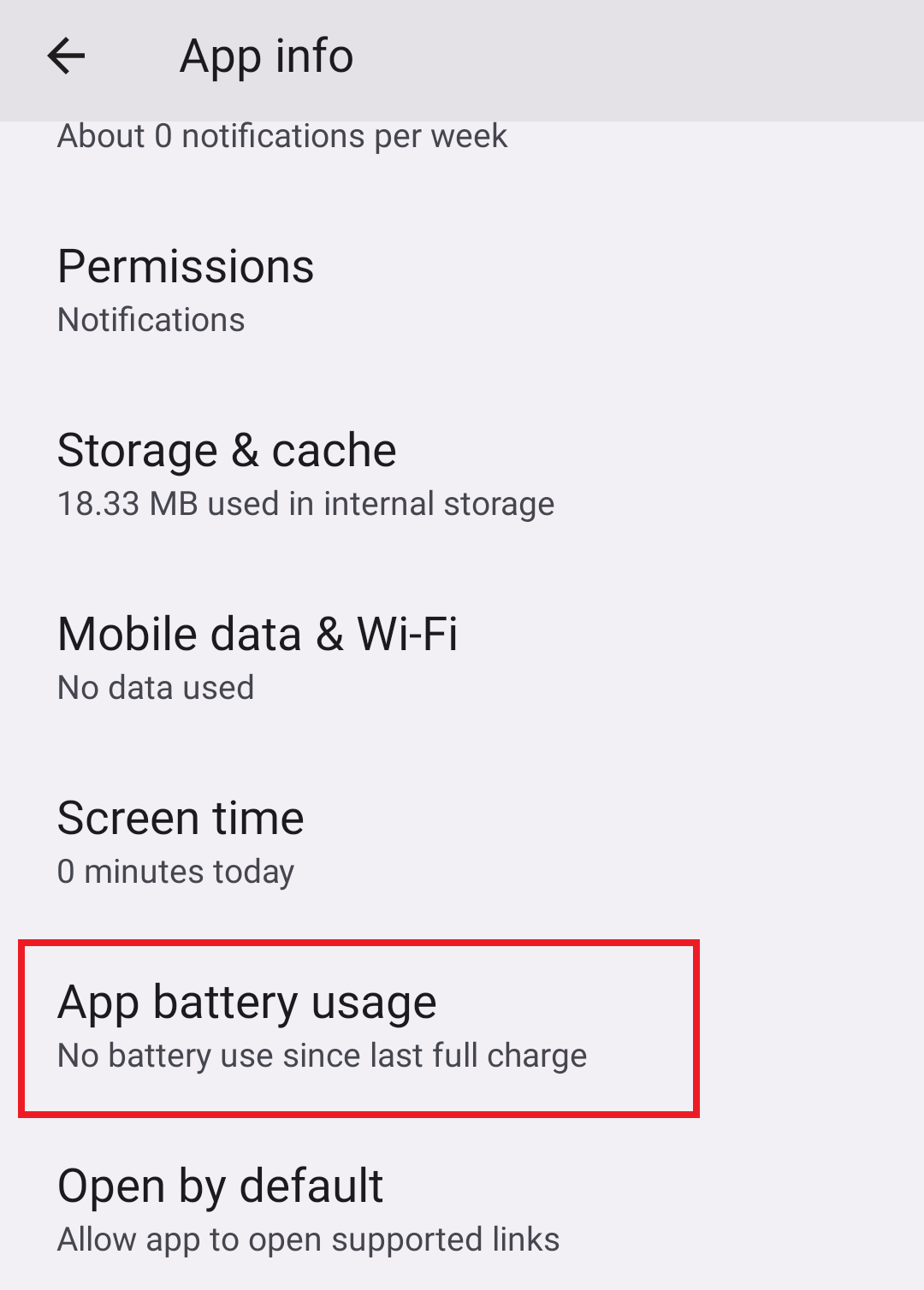
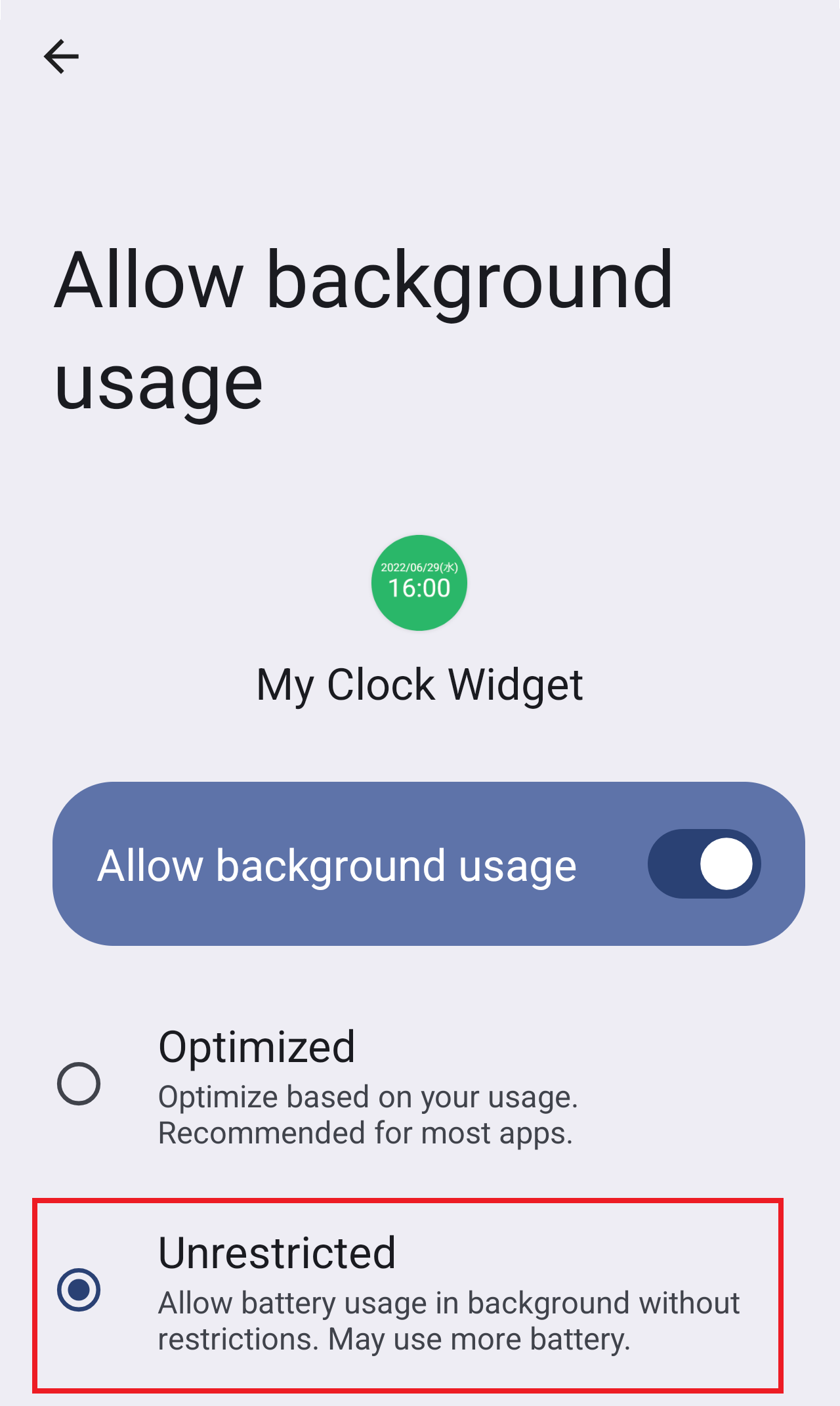
- Turn “Allow background usage” ON, then tap the item itself.
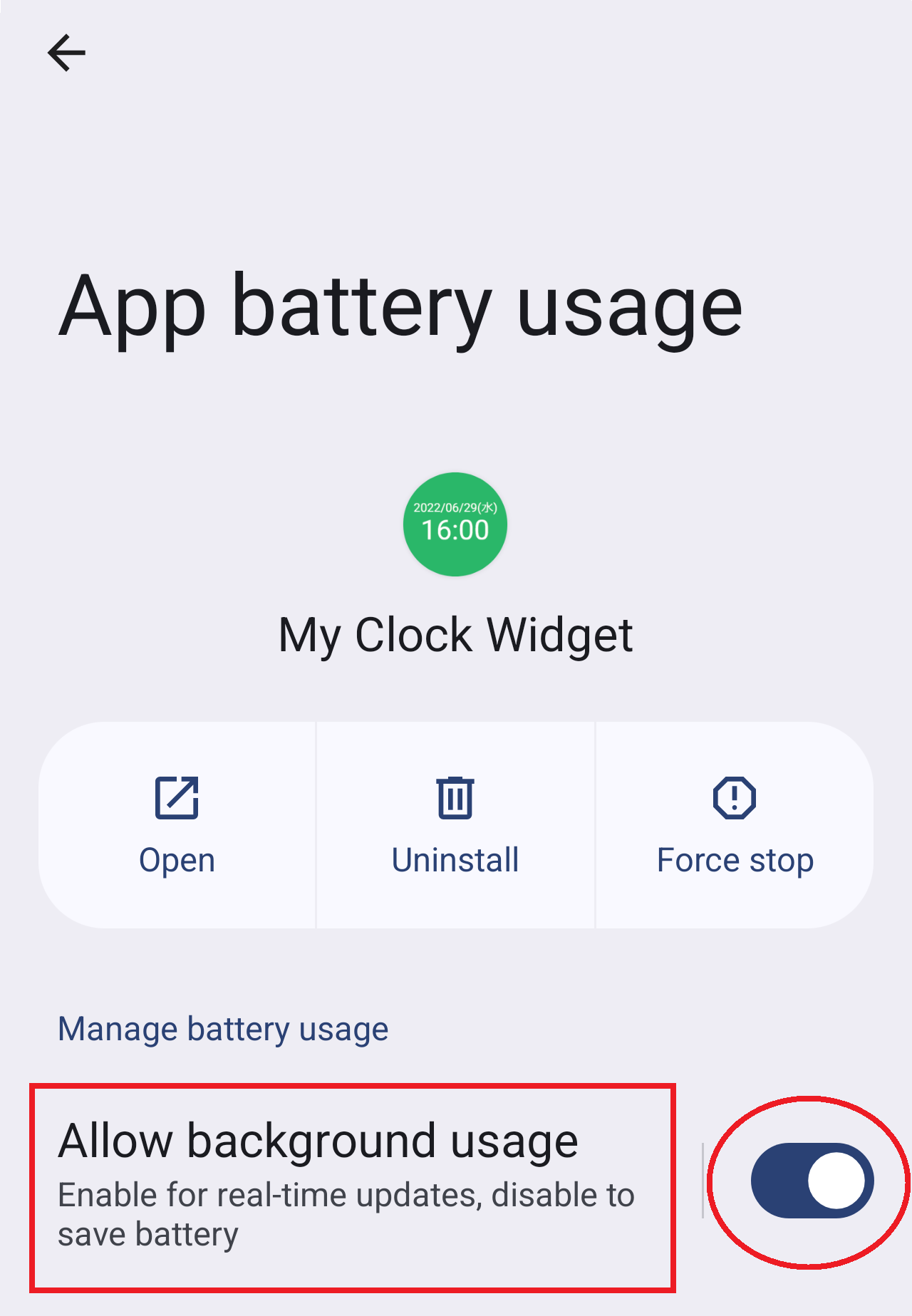
- Select “Unrestricted” from the options shown at the bottom.
- Restart your device.
Other devices(Android 14 or earlier)
- Long-press the “My Clock Widget” app icon on your home screen.
- Tap “App info” from the menu that appears.
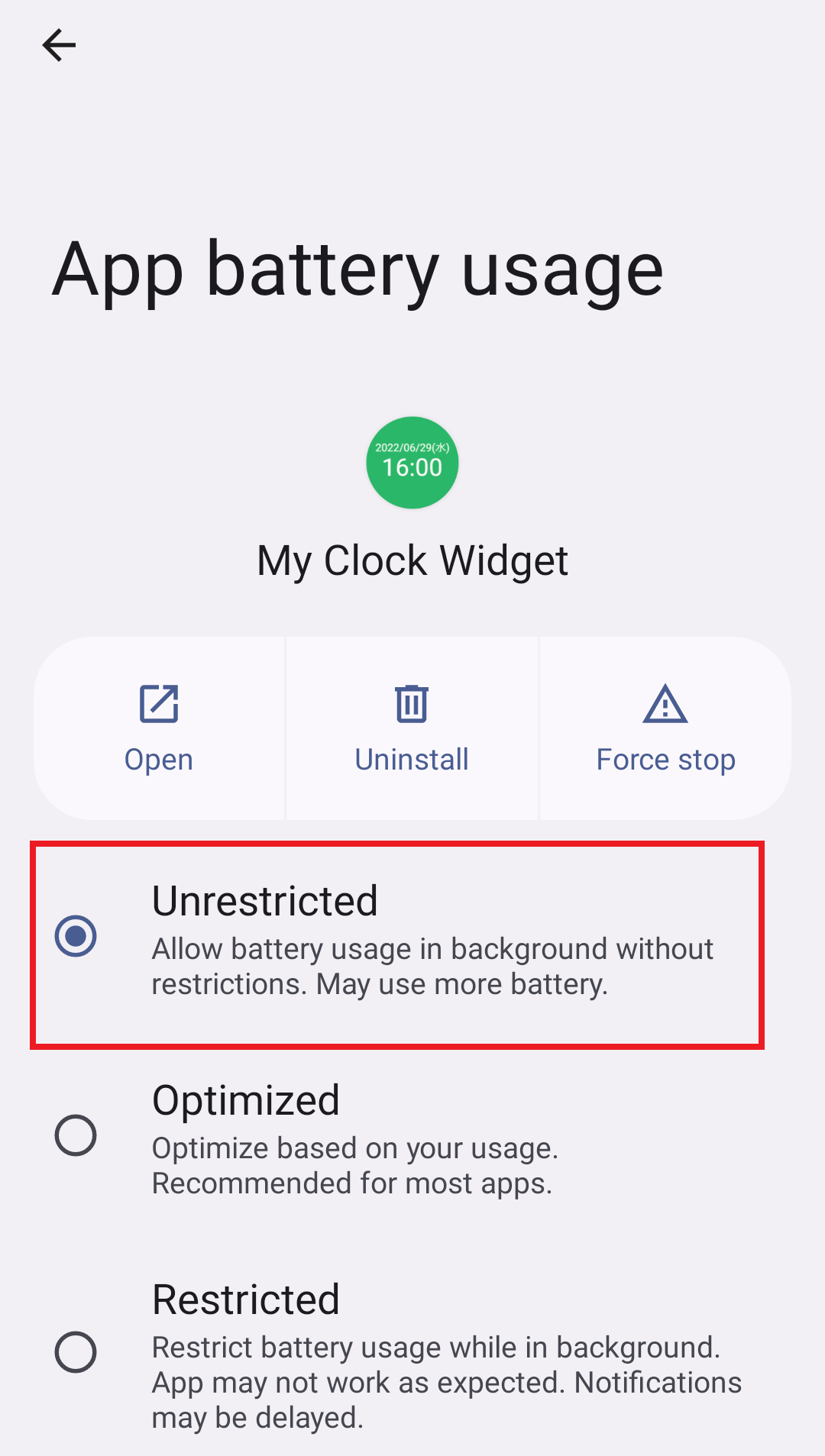
- Tap “App battery usage”.
This option may appear as “Battery” or “Power” depending on your device model or region.
- Select “Unrestricted” from the options shown at the bottom.
- Restart your device.
For general Android troubleshooting tips, please refer to your device manufacturer’s support site.