
User guide
Updated: October 5, 2026
Contents
1.Add the clock to your home screen
2.Change the clock settings
3.When the clock stops updating
4.Conclusion
1.Add the clock to your home screen
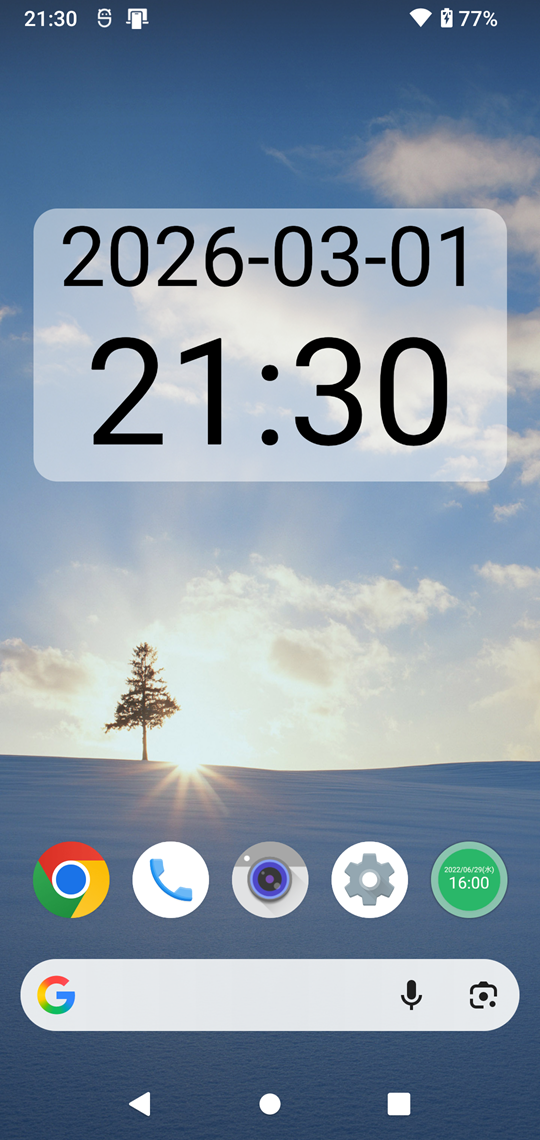
To show the clock on your home screen, you need to add a widget.
The red area in the image below shows the widget.
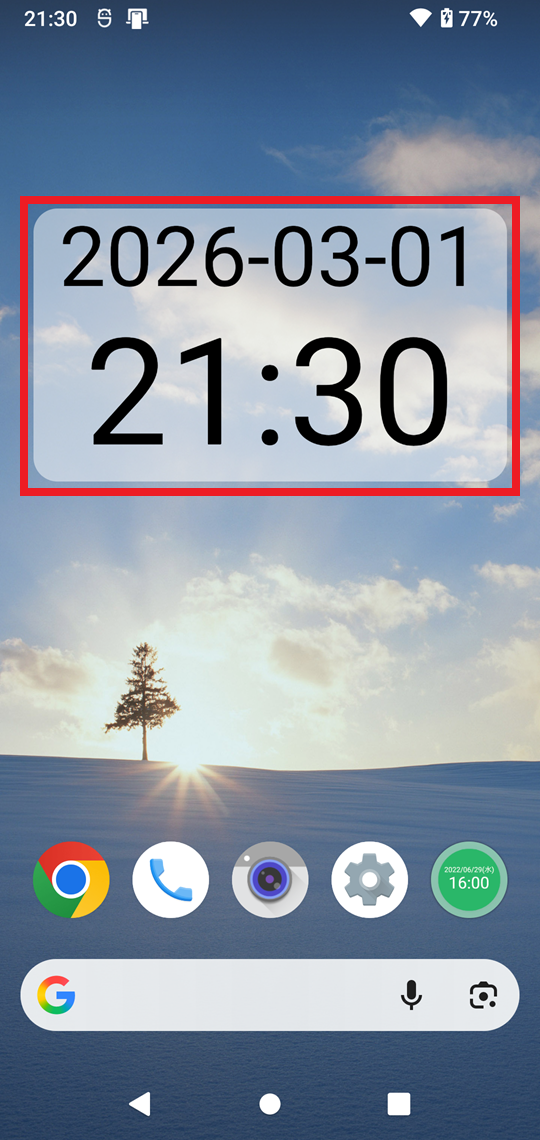
You can add the widget using either of the following methods.
Add the widget
(From the app icon)
- Long-press the “My Clock Widget” app icon on your home screen.
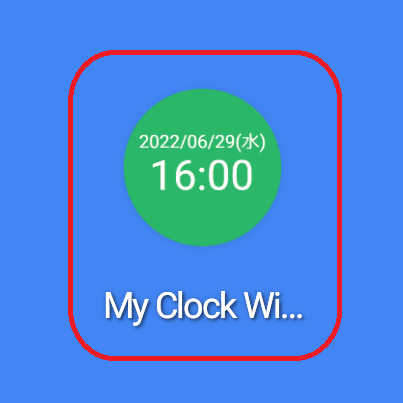
- Select “Widgets” from the menu.
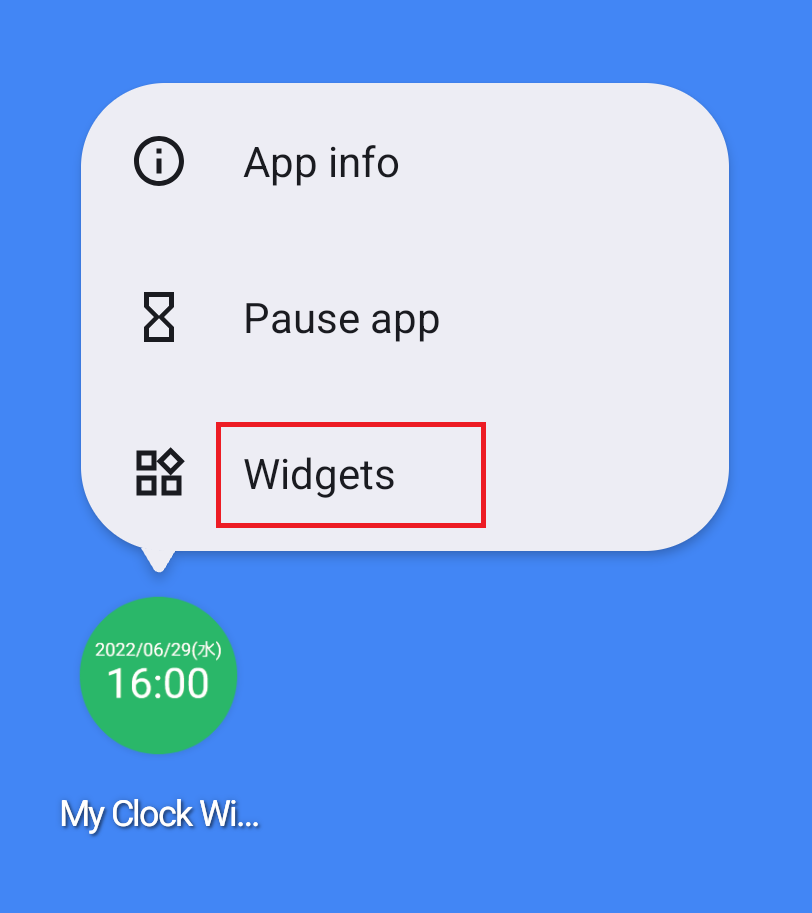
- Long‑press the clock image shown at the bottom.
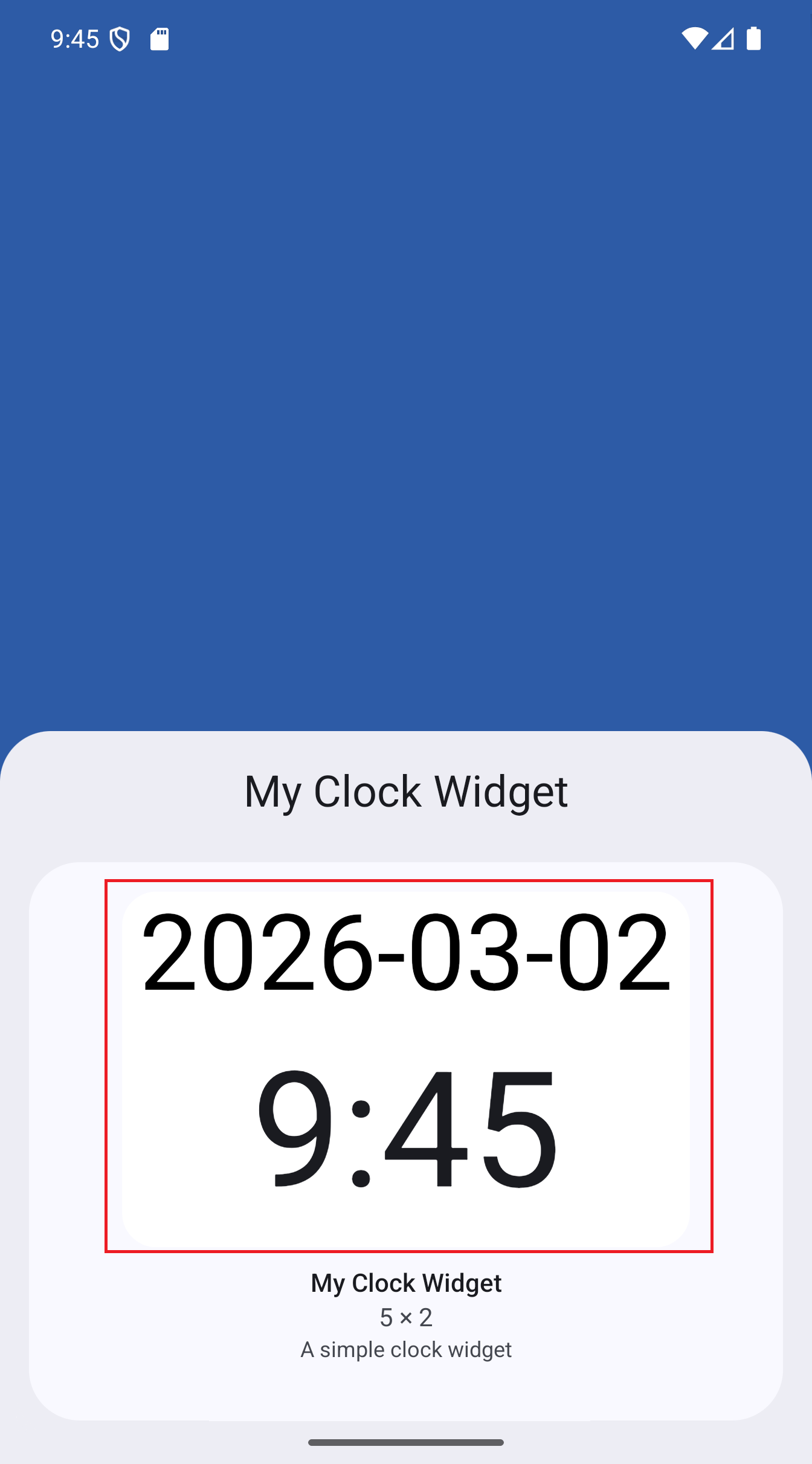
- Drag it to the desired position and release your finger.
Add the widget
(From the home screen)
- Long-press an empty area on your home screen.
- Select “Widgets” from the menu.
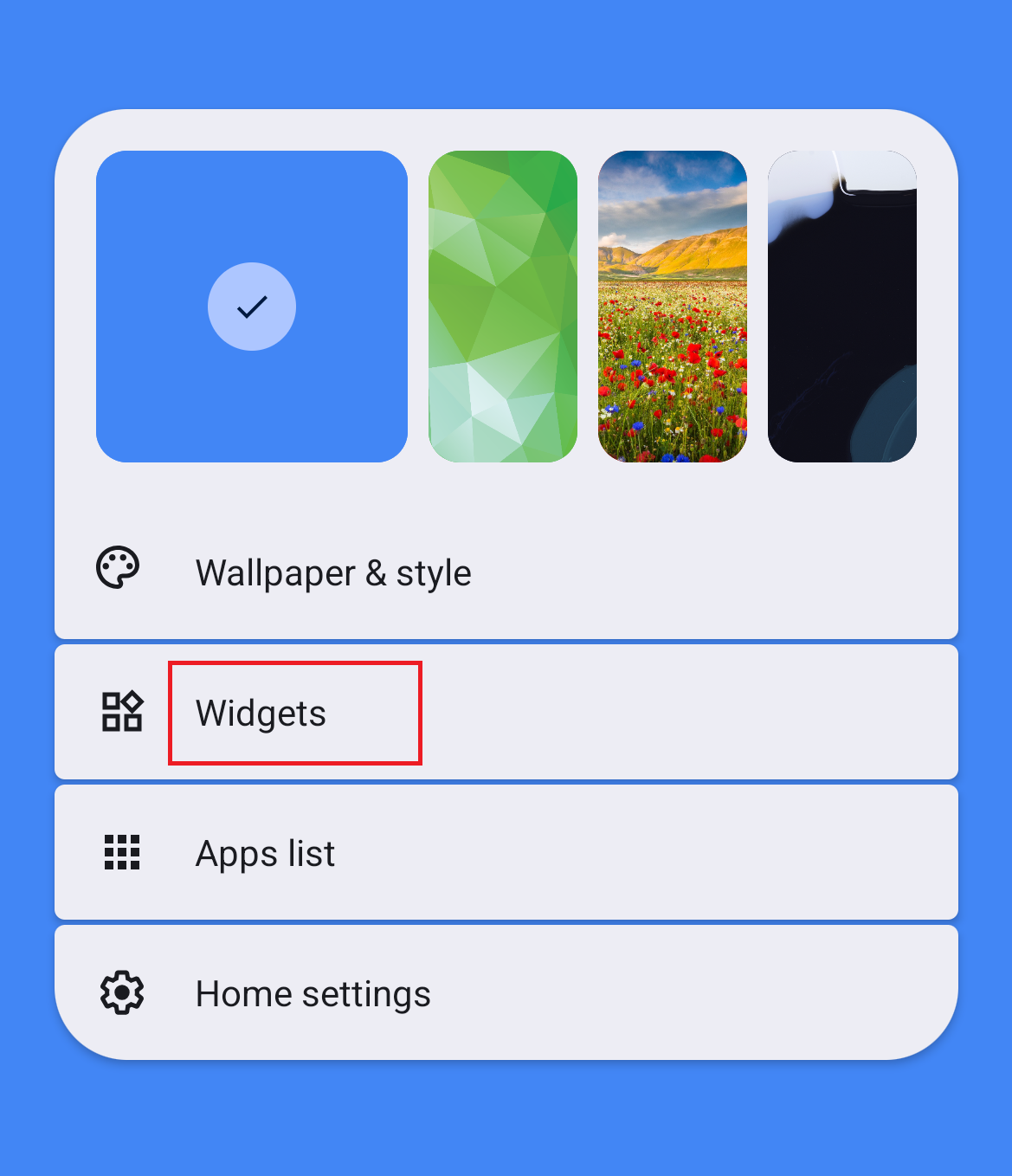
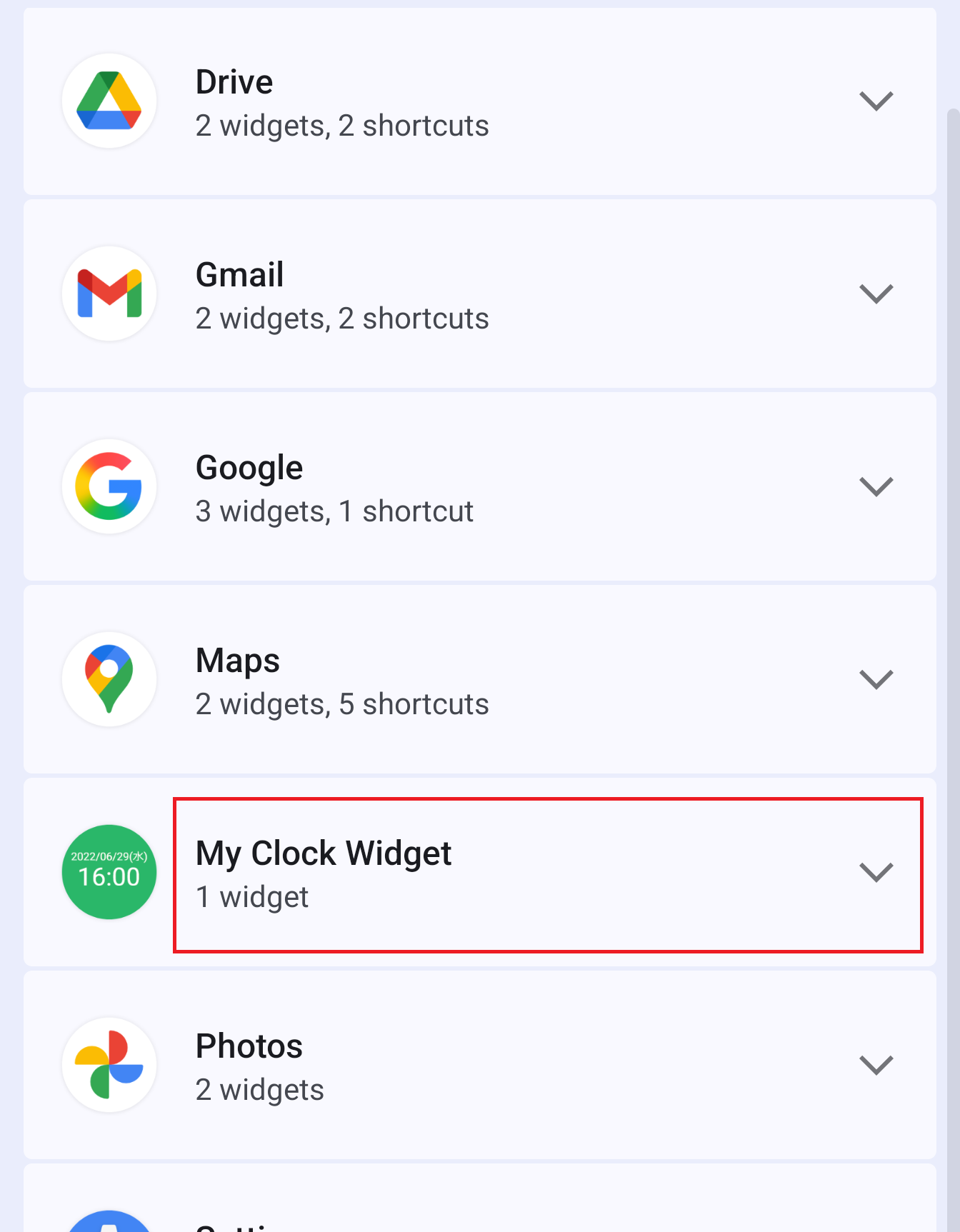
- Find and tap “My Clock Widget” in the list.
- Long‑press the clock image shown at the bottom.
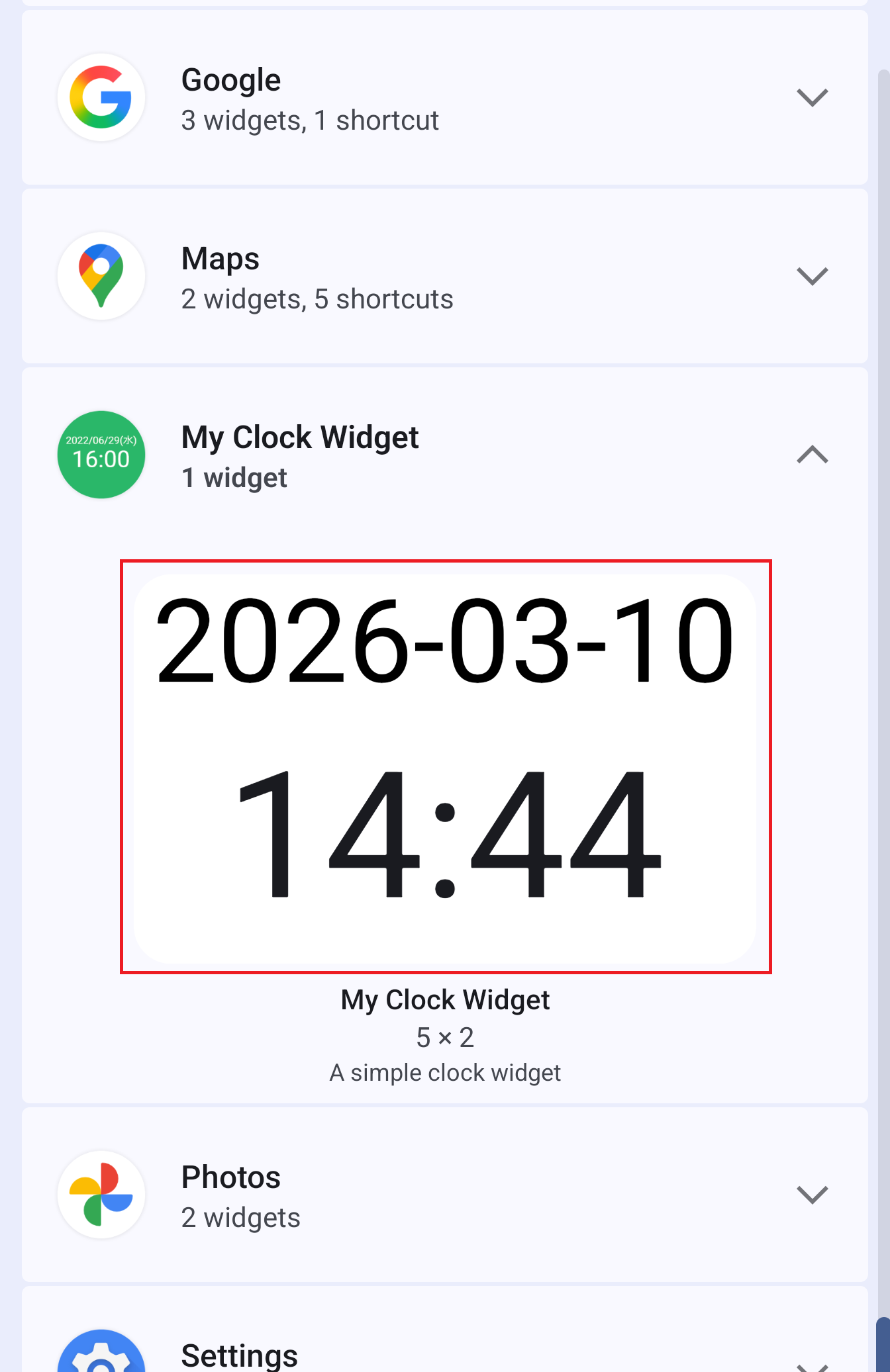
- Drag it to the desired position and release your finger.
The widget you added to your home screen can be moved, resized, or removed.
Move the widget to a different position
- Long-press the widget.
- Drag it to the desired position and release your finger.
Resize the widget
- Long-press the widget.
- Release your finger. A frame with handles will appear around the widget.
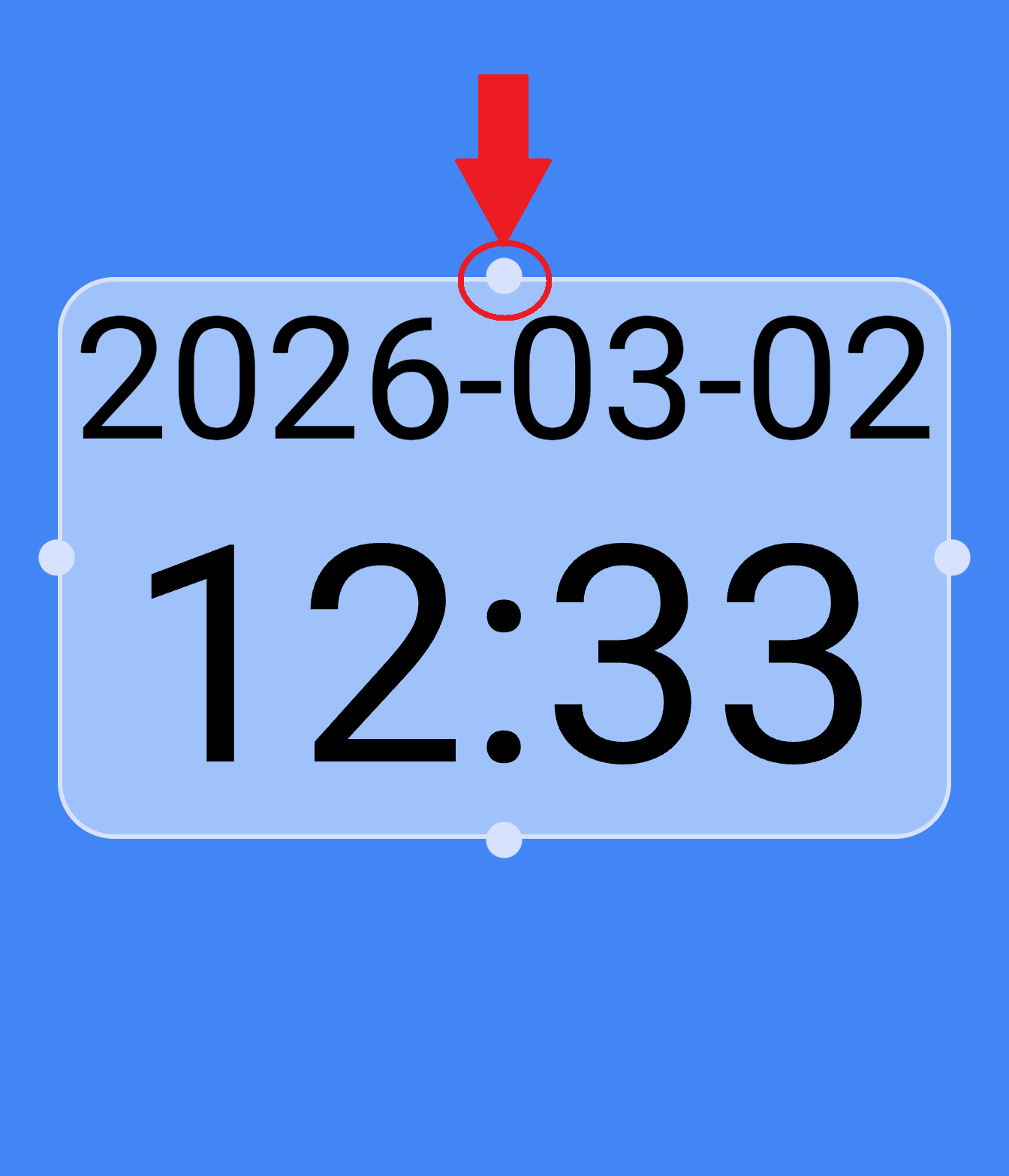
- Drag the handles on the corners or edges to adjust the size.
- Tap outside the widget to finish.
*Note: Some devices do not support widget resizing.
Remove the widget
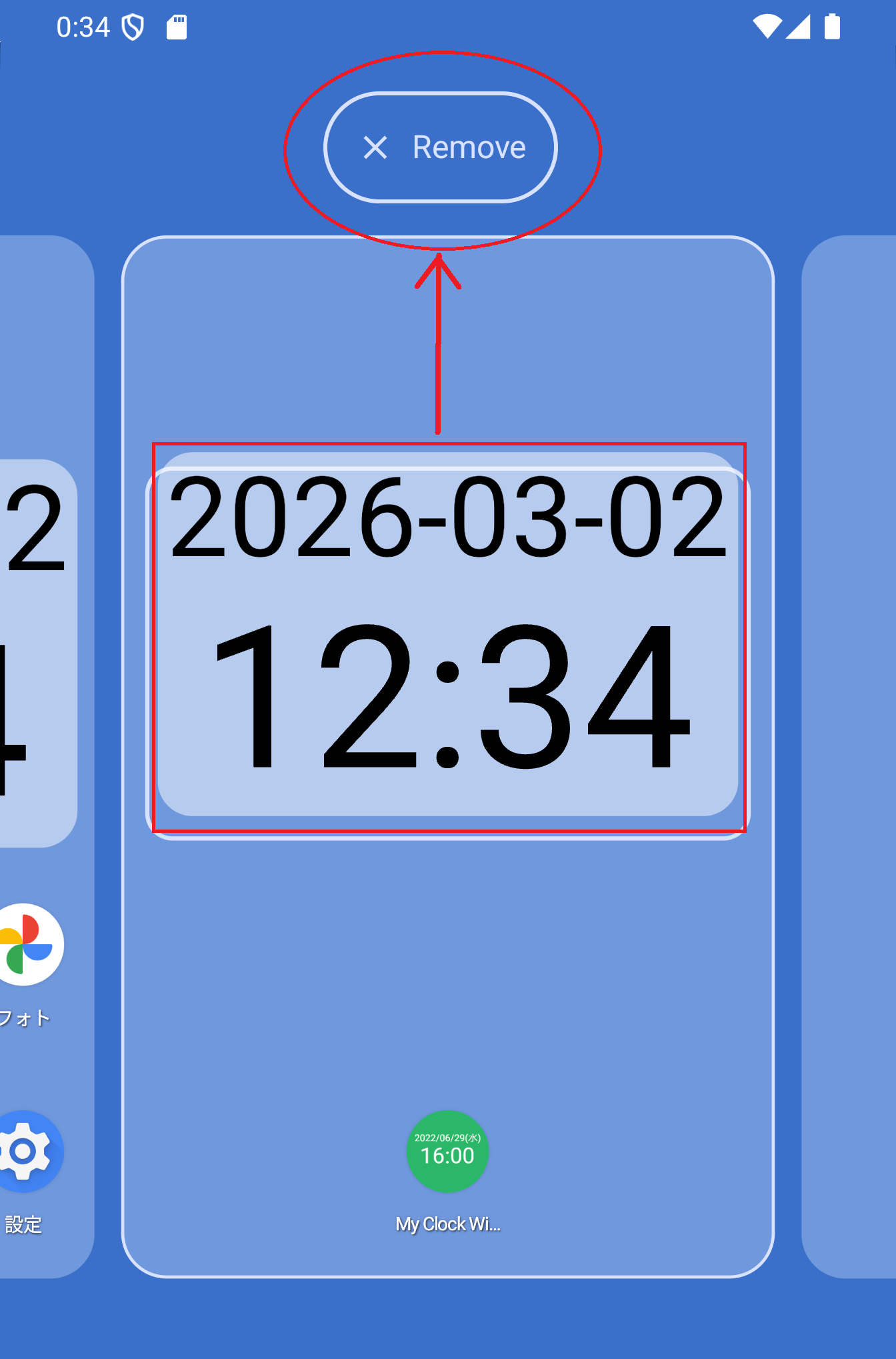
- Long-press the widget.
- Drag it to the “Remove” or “Trash” area shown at the top or bottom of the screen, then release.
2.Change the clock settings
Tapping the widget or the app icon opens the settings screen where you can change the clock settings.
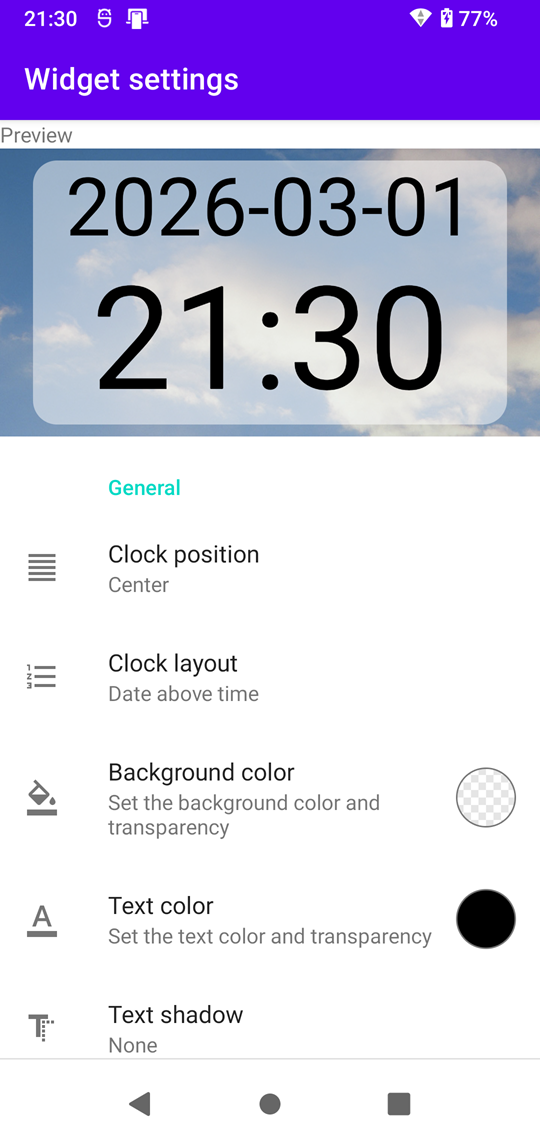
A preview of the clock is shown at the top, and the settings are listed below it.
When you change a setting, the result is reflected in the preview immediately.
The settings are grouped into the following four categories:
General settings
Clock position
Set the horizontal alignment of the clock.
You can select from the following:
Clock display content
Set the display content of the clock.
You can select from the following:
- Date → Time
- Time → Date
- Date only
- Time only
Background color
Set the background color.
You can adjust the color and transparency using the color palette.
Text color
Set the text color.
You can adjust the color and transparency using the color palette.
Text shadow
Set the text shadow style.
You can select from the following:
Time settings
Time format
Set the time format.
You can select from the following:
- 10時00分 (Japanese format)
- 10:00 (Colon format)
Use 12-hour format
Set whether the time is displayed in the 12‑hour format.
Show AM/PM
Set whether AM/PM is displayed when using the 12‑hour format.
AM/PM format
Set the AM/PM format used when AM/PM is shown.
You can select from the following:
- 午前/午後
- AM/PM
- am/pm
- a.m./p.m.
AM/PM position
Set whether AM/PM appears on the left or right side of the time.
Use zero hour
Set whether noon and midnight are displayed as 0:00.
Two-digit hour format
Set whether the hour is displayed with two digits (e.g., 09:00 instead of 9:00).
Show seconds
Set whether seconds are displayed.
Seconds style
Set the seconds display style.
You can select from the following:
Time size
Set the time text size.
You can select from the following:
Date settings
Date format
Set the date format.
There are 61 options available, such as:
- 2026-02-17
- 2026/02/17
- 2月17日(火)
- Tue, Feb 17 , and many more
Two-digit year format
Set whether the year is displayed with two digits (e.g., 2026 → 26).
Date size
Set the date text size.
You can select from the following:
Other settings
Tap action
Set what happens when you tap the widget on your home screen.
You can select from the following:
- Open settings screen
- Do nothing
If you select “Do nothing,” the widget will not respond when tapped.
This is useful if you want to prevent accidental taps on your home screen.
Adjust the settings while checking the preview to create your preferred style.
3.When the clock stops updating
A few days after you start using the widget (typically 2–4 days), you may notice the following symptoms:
- The clock appears to stop
- The date appears not to change
These symptoms occur when the device’s battery optimization (power‑saving) features stop the app from running in the background.
They are not caused by a bug in the app.
This issue is more common on the following devices:
- Xiaomi devices
(strong battery optimization)
- OPPO devices
(strong battery optimization)
- Devices with battery optimization enabled
When symptoms appear
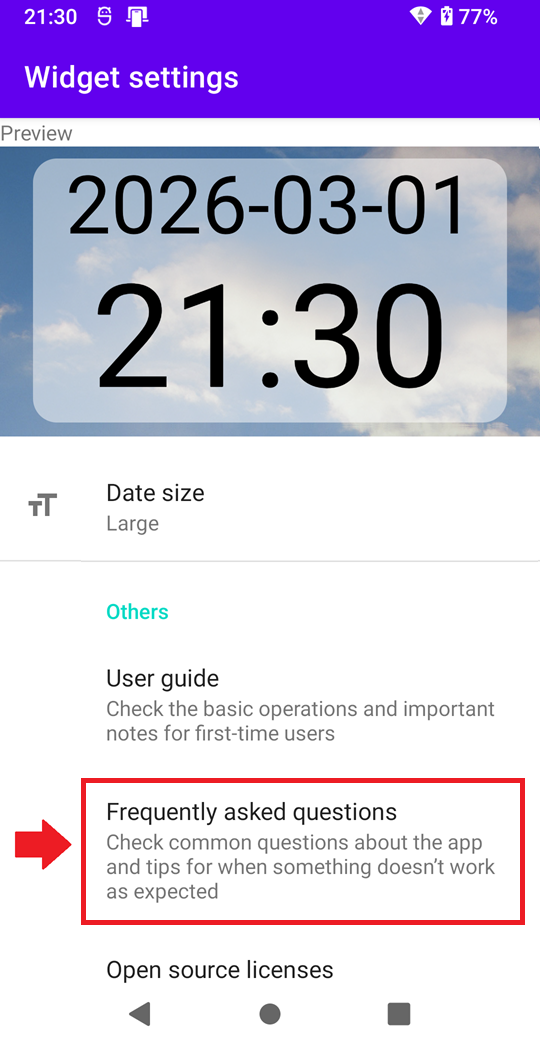
Adjusting the device’s battery optimization (power‑saving) settings may resolve the issue.
For detailed steps, please check the FAQ.
When no symptoms appear
No additional action is needed.
You can continue using the widget as usual.
4.Conclusion
This guide has covered the key points to help you use the app effectively.
We hope this app will be of help in your daily time checking.
Thank you for reading to the end.
Back to top